
Laptop Maintenance: Keeping Your Device Running Smoothly

Introduction:
Your laptop is not just a tool; it’s an essential part of your daily life. Whether you use it for work, school, or entertainment, keeping it in top shape is crucial for uninterrupted productivity and enjoyment. In this blog post, we’ll explore the importance of laptop maintenance and share practical tips to ensure your device runs smoothly for years to come.
1. Keep it Clean:
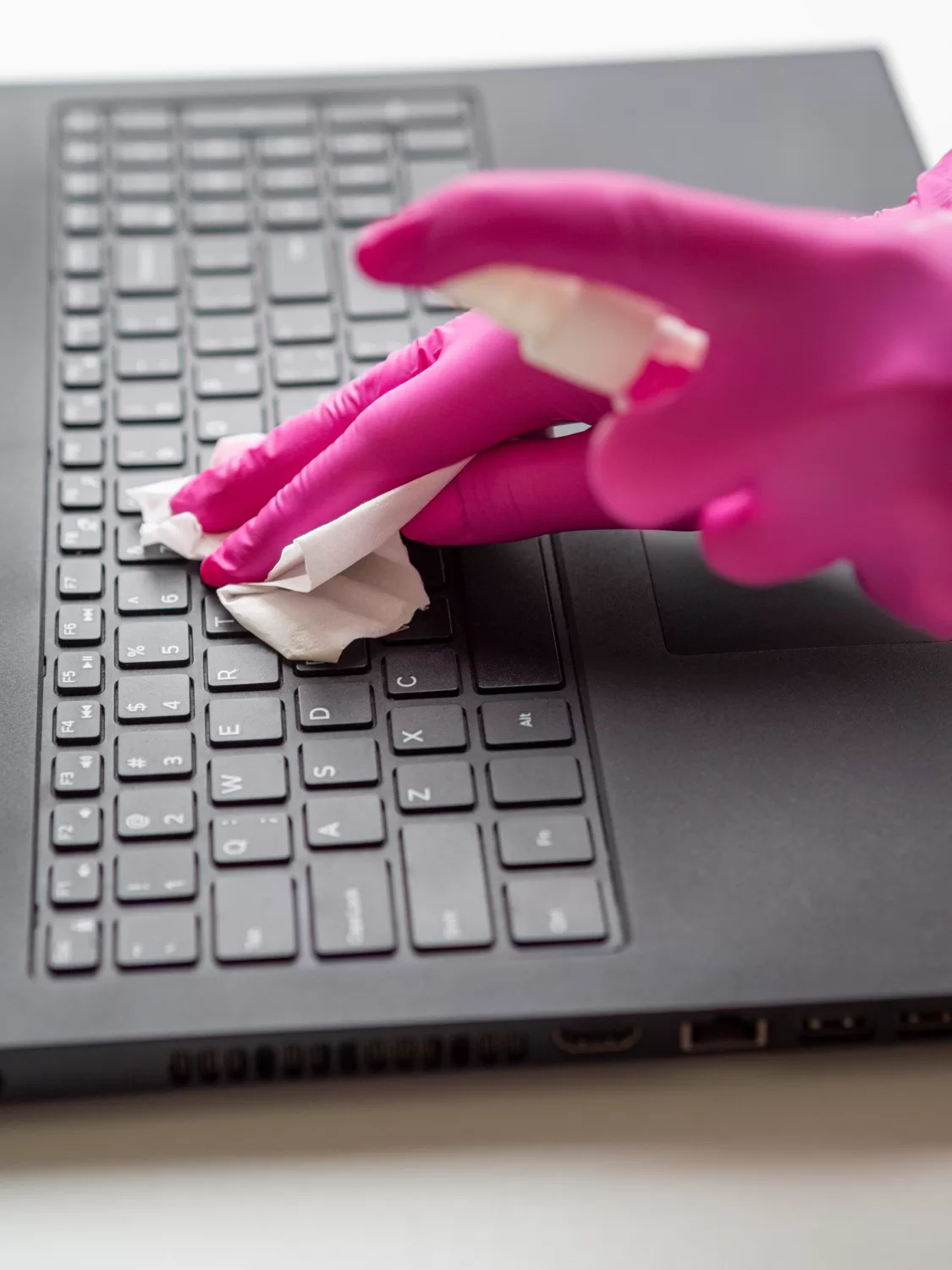
A clean laptop is a happy laptop. Dust, crumbs, and debris can accumulate inside your device, leading to overheating and reduced performance. Here’s how to keep it clean:
- Exterior Cleaning: Use a microfiber cloth and a gentle electronics cleaner to wipe down the laptop’s exterior regularly.
- Keyboard Cleaning: Remove dust and debris from your keyboard by gently shaking it upside down. Use compressed air to blow away stubborn particles.
- Screen Care: Clean your laptop screen with a soft, lint-free cloth and a screen-cleaning solution designed for electronics.
2. Avoid Overheating:
Overheating can cause serious damage to your laptop’s components and slow down its performance. To prevent overheating:
- Use a Cooling Pad: Invest in a laptop cooling pad to provide additional ventilation and cooling during heavy usage.
- Elevate the Laptop: Place your laptop on a hard, flat surface to allow for proper airflow.
- Keep Vents Clear: Ensure that the cooling vents are not obstructed by placing your laptop on a clean surface.
3. Update Software Regularly:
Keeping your operating system and software up to date is essential for both performance and security. Set your laptop to receive automatic updates or check for updates manually:
- Windows: Enable Windows Update.
- macOS: Check for updates in the System Preferences.
4. Manage Startup Programs:
Unnecessary startup programs can slow down your laptop’s boot time. Disable or remove programs that you don’t need to launch at startup:
- On Windows: Use the Task Manager’s Startup tab to manage startup applications.
- On macOS: Navigate to “System Preferences” > “Users & Groups” > “Login Items” to control which apps launch at startup.
5. Backup Your Data:
Regular data backups are crucial to safeguard your files and settings. Use an external hard drive, cloud storage, or a dedicated backup solution to protect your data in case of hardware failure or accidents.
6. Protect Against Malware:
Invest in reliable antivirus and anti-malware software to protect your laptop from viruses, malware, and other online threats. Perform regular scans to ensure your system remains secure.
7. Be Cautious with Software Installation:
Avoid installing unnecessary software or applications from untrusted sources. Only download software from reputable websites to reduce the risk of malware and bloatware.
8. Battery Maintenance:
If your laptop has a removable battery, consider removing it when using the laptop plugged into power for extended periods. This can help extend the battery’s lifespan.
Conclusion:
Laptop maintenance is not just a one-time task; it’s an ongoing process that ensures your device remains reliable and efficient. By following these tips and making laptop care a routine part of your digital life, you can enjoy a smooth and trouble-free computing experience for years to come. Remember, a well-maintained laptop is a happy laptop!


