
Printer Won’t Print: Common Issues and Quick Fixes

Introduction:
Printers are essential devices in both home and office settings, but they can be a source of frustration when they suddenly refuse to cooperate. We’ve all been there – hitting the print button, only to be met with silence or an error message. Before you resort to banging your head against the wall, let’s explore some of the common issues that can cause your printer to misbehave and the quick fixes that might save the day.
1. Check the Basics:
Before diving into complex troubleshooting, start with the basics:
- Power and Connectivity: Ensure your printer is properly connected to a power source and your computer. Check cables and connections for any loose ends.
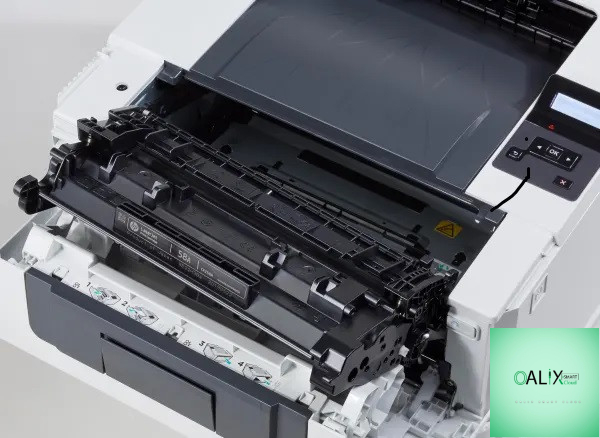
- Paper and Ink/Toner: Make sure there’s enough paper in the tray, and your ink or toner levels are sufficient. Many printers won’t print if they’re low on ink or toner.
- Printer Status: Look at the printer’s display panel or status lights for any error messages. These can provide valuable clues.
2. Restart Everything:
Sometimes, all it takes is a fresh start:
- Restart Your Printer: Turn off your printer, unplug it from the power source, wait for a minute or two, and then plug it back in and power it on. This can clear out minor glitches.
- Restart Your Computer: Reboot your computer to ensure that any print jobs stuck in the queue are cleared.
3. Check Print Queues:
If your printer is still unresponsive, check the print queue:
- Clear Print Queue: Sometimes, print jobs get stuck in the queue, preventing new ones from being processed. Go to your computer’s print queue and cancel any pending jobs.
- Restart Print Spooler: If you’re using Windows, you can try restarting the Print Spooler service. Open the Services app, find “Print Spooler,” and click “Restart.”
4. Update or Reinstall Drivers:
Outdated or corrupted printer drivers can cause printing issues:
- Update Drivers: Visit the printer manufacturer’s website and download the latest drivers for your printer model.
- Reinstall Drivers: If updating doesn’t work, consider uninstalling the current drivers and then reinstalling the updated ones.
5. Network Connection Problems:
If your printer is connected via Wi-Fi or a network, network issues could be the culprit:
- Check Wi-Fi Connection: Ensure your printer is connected to the correct Wi-Fi network and has a stable connection.
- Restart Router: If there are Wi-Fi issues, try restarting your router to refresh the network connection.
6. Clear Paper Jams:
Paper jams are a common headache:
- Inspect for Jams: Open your printer and carefully check for any jammed paper. Follow the printer’s manual for guidance on clearing paper jams.
7. Run Troubleshooters:
Both Windows and macOS have built-in printer troubleshooters:
- Windows: Use the “Troubleshoot” option in the Control Panel to run the Printer Troubleshooter.
- macOS: Navigate to System Preferences > Printers & Scanners, select your printer, and click “Open Print Queue.” From there, click “Printer” and choose “Troubleshoot.”
8. Reinstall the Printer:
As a last resort, you can try uninstalling and reinstalling your printer:
- Uninstall: Remove the printer from your computer’s list of installed printers.
- Reinstall: Add the printer again using the manufacturer’s recommended installation process.
Conclusion:
Printer problems can be frustrating, but they’re often solvable with a bit of patience and troubleshooting. By following these common quick fixes, you can often get your printer back up and running without the need for professional help. Remember that prevention is key, so regular maintenance and keeping your printer drivers up to date can help you avoid future printing woes. If all else fails, don’t hesitate to contact the printer manufacturer’s support for further assistance. Happy printing!


