
MacBook Customization Guide: Personalizing Your Apple Experience

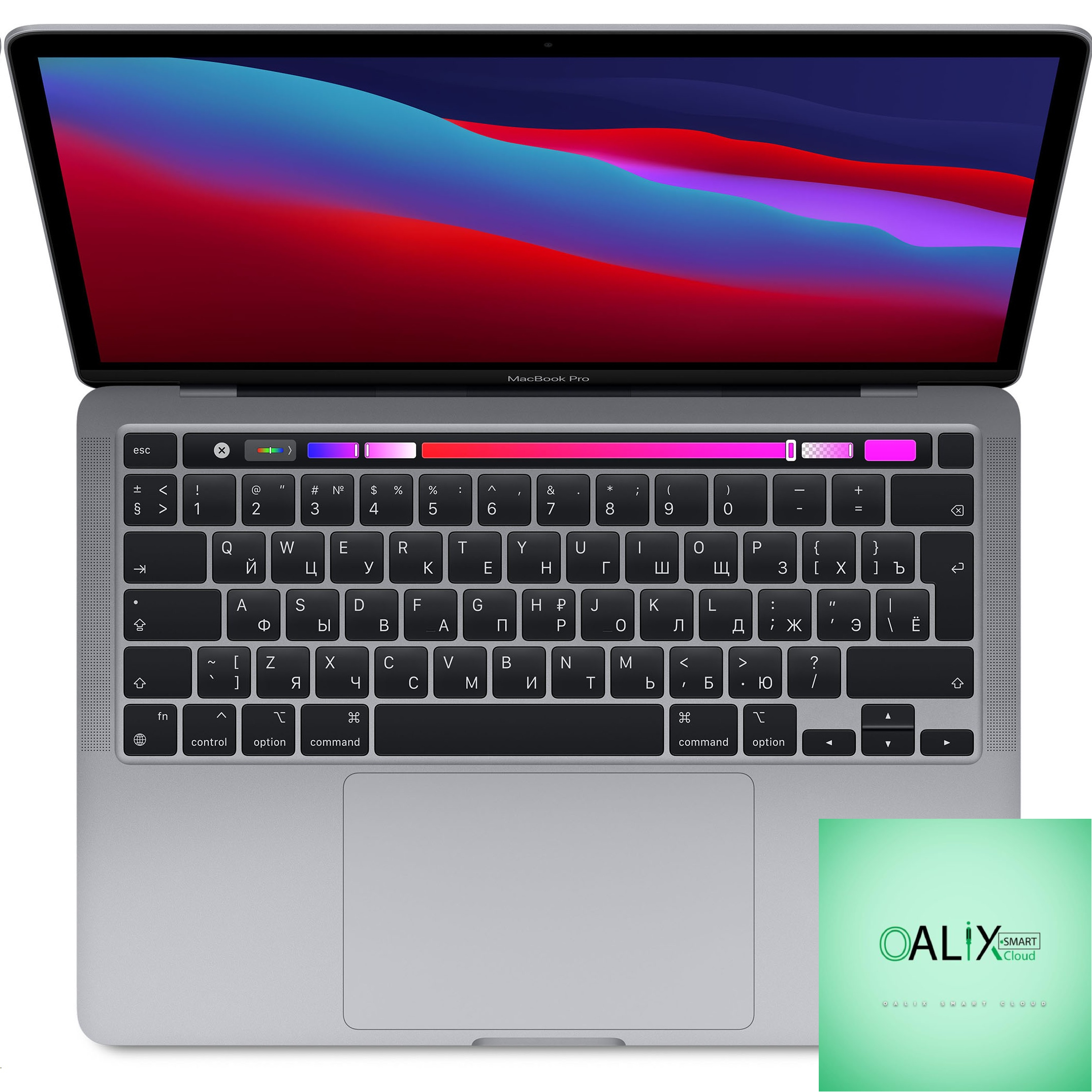
Introduction
Apple’s MacBook laptops are not just tools; they are extensions of your personality, creativity, and style. While the sleek and elegant design of a MacBook is timeless, you can take your Apple experience to the next level by adding a touch of personalization. In this blog post, we’ll dive into a comprehensive MacBook customization guide to help you tailor your device to your unique preferences, ensuring that your MacBook is not just a device, but a reflection of your individuality.
1. Desktop Wallpaper and Screensaver
The first step in customizing your MacBook is choosing a desktop wallpaper that resonates with you. Apple offers a wide range of stunning default wallpapers, but you can also set your own photos or artwork as your background. To add an extra layer of personalization, consider selecting a screensaver that showcases your favorite memories or visuals.
2. Desktop Organization
Efficiency meets customization as you organize your desktop. Arrange your app icons and folders in a way that suits your workflow. Create folders for different categories, rearrange icons based on frequency of use, and eliminate clutter for a clean and organized workspace.
3. Dock Customization
The dock is your gateway to essential apps, and you can personalize it to match your preferences. Easily add or remove apps, rearrange their positions, and even change the appearance of the dock by adjusting its size and magnification settings.
4. Keyboard and Trackpad Settings
Fine-tune your typing and navigation experience by customizing keyboard and trackpad settings. Adjust key repeat rates, enable keyboard shortcuts, and modify trackpad gestures to streamline your interaction with your MacBook.
5. Dark Mode and Accent Colors
Personalize your visual experience by toggling Dark Mode, which transforms the interface into a sleek dark color scheme. Additionally, macOS allows you to choose an accent color that affects buttons, icons, and other elements, giving you a cohesive and personalized look.
6. Dynamic Desktop and Night Shift
For a touch of elegance, enable Dynamic Desktop, which subtly changes your wallpaper throughout the day to match the time. Night Shift reduces blue light exposure in the evening, making late-night work sessions easier on your eyes.
7. Custom Icons and Themes
Take customization to the next level by installing custom icons and themes. There are various websites and apps that offer icon packs and themes to transform the look of your apps and UI elements. This allows you to create a truly unique visual identity for your MacBook.
8. System Preferences and Accessibility
Dig deeper into customization through the System Preferences menu. Adjust settings related to notifications, energy-saving, security, and more. Explore the Accessibility options to make your MacBook more comfortable and user-friendly according to your needs.
Conclusion
Your MacBook is an integral part of your digital life, and customizing it enhances your connection to the device. Whether you’re a minimalist who appreciates a clean and organized workspace or a creative spirit eager to infuse every corner with your personality, the MacBook customization guide empowers you to create an Apple experience that is uniquely yours. Embrace the opportunity to personalize your MacBook, transforming it from a standard device into a canvas of self-expression and functionality. As you embark on this journey of customization, remember that your MacBook is a reflection of you – powerful, versatile, and beautifully one-of-a-kind.


