
Upgrading Your RAM: A Quick and Easy Boost for Your Computer

Introduction
In the world of computer upgrades, few changes can provide an immediate and noticeable impact on performance quite like upgrading your RAM (Random Access Memory). RAM is the temporary storage space that your computer uses to run programs and store data actively in use. Whether you’re a gamer looking for smoother gameplay, a creative professional dealing with resource-intensive tasks, or just a casual user wanting a snappier experience, upgrading your RAM can be a quick and cost-effective solution to breathe new life into your computer. In this blog post, we’ll explore the benefits of upgrading your RAM and provide a step-by-step guide on how to do it.
Why Upgrade Your RAM?
- Improved Multitasking: With more RAM, your computer can handle multiple tasks simultaneously without slowing down. This means you can run more applications and browser tabs without experiencing performance drops.
- Enhanced Performance: RAM plays a crucial role in speeding up your computer. More RAM allows for faster data access, resulting in quicker load times for applications and files.
- Better Gaming Experience: Gamers often benefit from additional RAM, as it reduces stuttering and improves overall gaming performance. Games with high-resolution textures and complex environments particularly benefit from ample RAM.
- Efficient Video Editing: Video editing and rendering software demand significant resources. Upgrading your RAM can make these tasks smoother and more efficient.
How to Upgrade Your RAM
Before you start, ensure that you have compatible RAM modules for your computer. Follow these steps to upgrade your RAM:
1. Gather Your Tools:
You’ll need a Phillips screwdriver and your new RAM modules.
2. Backup Your Data:
Although RAM upgrades are generally safe, it’s always a good practice to back up your important data.
3. Power Down Your Computer:
Turn off your computer and unplug it from the power source.
4. Open the Computer Case:
Depending on your computer’s design, you may need to remove a side panel or access a RAM compartment.
5. Locate the Existing RAM:
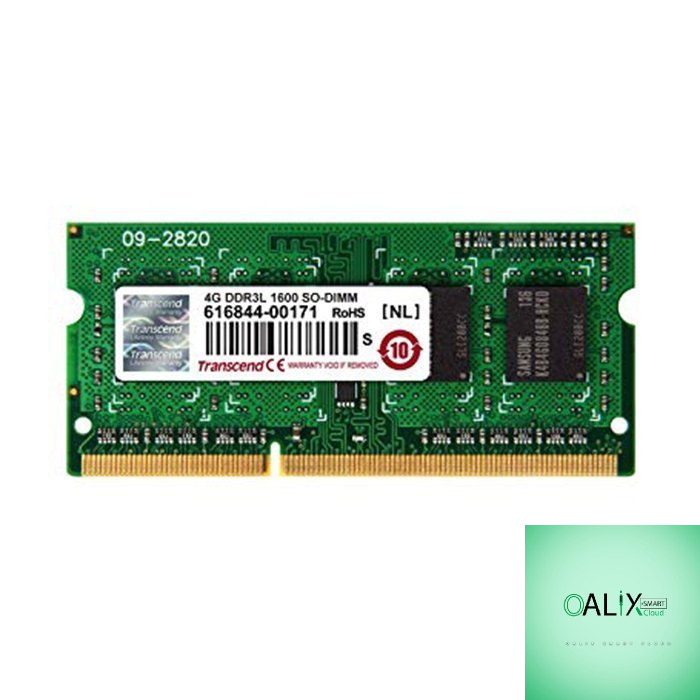
Find the existing RAM modules on your motherboard. They are typically long, narrow sticks.
6. Remove Existing RAM (If Necessary):
If all RAM slots are occupied, you’ll need to remove the existing modules by gently pushing down on the retention clips at each end of the module.
7. Insert the New RAM Modules:
Align the notches on the RAM module with the notches in the RAM slot, then press down firmly until the clips snap into place.
8. Close the Computer Case:
Put the side panel back on or close the RAM compartment.
9. Power On Your Computer:
Once everything is securely in place, plug your computer back in and power it on.
10. Check Your RAM:
To confirm the upgrade, check your computer’s system properties or use system information tools to verify that the new RAM is recognized.
Conclusion
Upgrading your RAM is a cost-effective way to boost your computer’s performance, making it more responsive and capable of handling demanding tasks. Whether you’re a professional or a casual user, the benefits of additional RAM are often felt immediately. Just remember to ensure compatibility, follow safety precautions, and enjoy the newfound speed and efficiency of your upgraded system.


