
Optimizing Your PC for Multitasking: The Role of RAM

Introduction
In today’s fast-paced digital world, multitasking has become a way of life for many computer users. Whether you’re a professional managing numerous applications simultaneously, a student juggling research, writing, and multimedia, or simply a person who enjoys having multiple browser tabs open at once, the ability to multitask efficiently can significantly enhance your productivity. One crucial component that plays a pivotal role in optimizing your PC for multitasking is RAM (Random Access Memory). In this blog post, we’ll delve into the importance of RAM when it comes to multitasking and provide tips on how to make the most of your system’s memory.
Understanding the Role of RAM in Multitasking
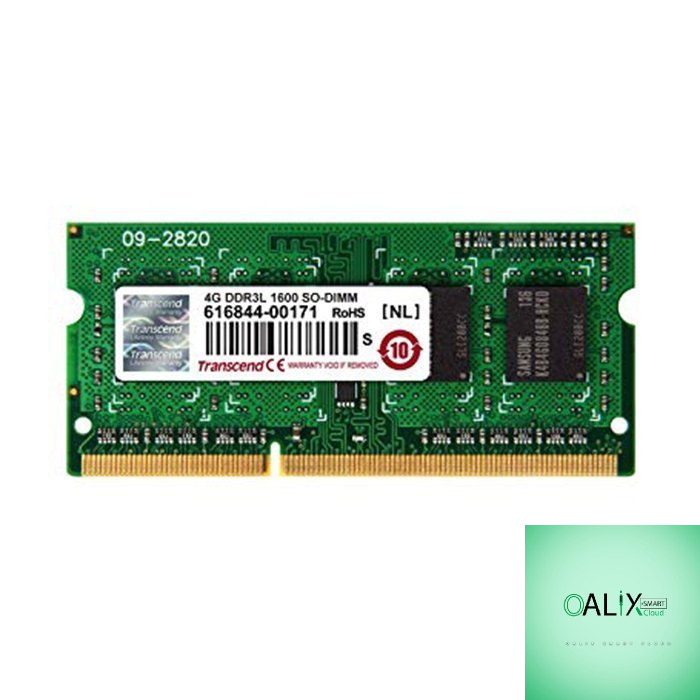
RAM is your computer’s short-term memory. It’s where data is temporarily stored while your computer is running. When you open an application or file, it’s loaded into RAM so that the CPU (Central Processing Unit) can access it quickly. The more RAM you have, the more data your computer can keep readily available for immediate use.
Here’s how RAM impacts multitasking:
1. Faster Switching Between Apps:
With ample RAM, your computer can store more applications and data in memory. This means you can switch between tasks more smoothly and with less delay.
2. Reduced Lag and Slowdowns:
Multitasking with insufficient RAM can lead to slowdowns and lag as your computer struggles to manage memory usage. More RAM alleviates this problem.
3. Improved Efficiency:
When you have sufficient RAM, you can keep multiple applications open without worrying about performance degradation. This enhances your workflow and efficiency.
4. Better Web Browsing:
If you’re a heavy web user with numerous tabs open, extra RAM can prevent browser crashes and enhance browsing speed.
Tips for Optimizing Your PC for Multitasking
1. Upgrade Your RAM:
If your computer feels sluggish when multitasking, consider upgrading your RAM. Check your system’s specifications to determine the maximum RAM capacity it can handle and install additional RAM modules accordingly.
2. Close Unused Applications:
To free up RAM, close applications and background processes that you’re not actively using. This prevents them from consuming valuable memory.
3. Use Task Manager (Windows) or Activity Monitor (Mac):
Monitor your system’s RAM usage using built-in tools. Identify resource-hungry applications and close or manage them accordingly.
4. Prioritize Tasks:
Assign higher priority to the applications or tasks that are most critical to your work. This ensures that they receive the necessary system resources.
5. Clear Cache and Temporary Files:
Periodically clear cache and temporary files to free up RAM and storage space. Disk cleanup tools can help with this.
6. Manage Browser Tabs:
If you’re a heavy browser user, use browser extensions or add-ons to suspend or unload inactive tabs to save RAM.
7. Restart Your PC:
Regularly restarting your computer clears RAM and helps improve performance by closing background processes.
Conclusion
RAM is a vital component when it comes to optimizing your PC for multitasking. By ensuring that you have sufficient RAM and following these tips to manage your system’s memory effectively, you can enjoy a smoother and more efficient computing experience, even when juggling multiple tasks simultaneously. Upgrading your RAM, where possible, is a practical step to enhance your computer’s multitasking capabilities and overall performance.


